1. Quick Start Guides
AnyRoute English
  • AnyRoute User Guide
  • Frequently Asked Questions
  • AnyRoute Support Group
  • Supported Models
  • Environment Setup
    • Node.js Installation Guide
    • CC Switch Introduction
  • Quick Start Guides
    • Codex CLI Quick Start
    • Claude Code Quick Start
    • OpenClaw Quick Start
    • Hermes Quick Start
    • Cherry Studio Quick Start
    • Claude Desktop Quick Start
    • Codex Desktop Quick Start
    • GPT Image 2 Guide
    • Claude Code in VS Code
  • Advanced Guides
    • Personal AGENTS.md Global Rules
    • Claude Code and Codex Collaboration Guide
  1. Quick Start Guides

Codex CLI Quick Start

Prerequisite: install Node.js#

Codex CLI can be installed through npm. Install Node.js first, then verify that both commands are available:
If Node.js is not installed yet, complete the Node.js Installation Guide.

1. Install Codex CLI#

Run the following command on Windows, macOS, or Linux:
Verify the installation:
If a version number is displayed, the installation succeeded.

2. Create an AnyRoute API key#

1.
Sign in to the AnyRoute API Keys page.
2.
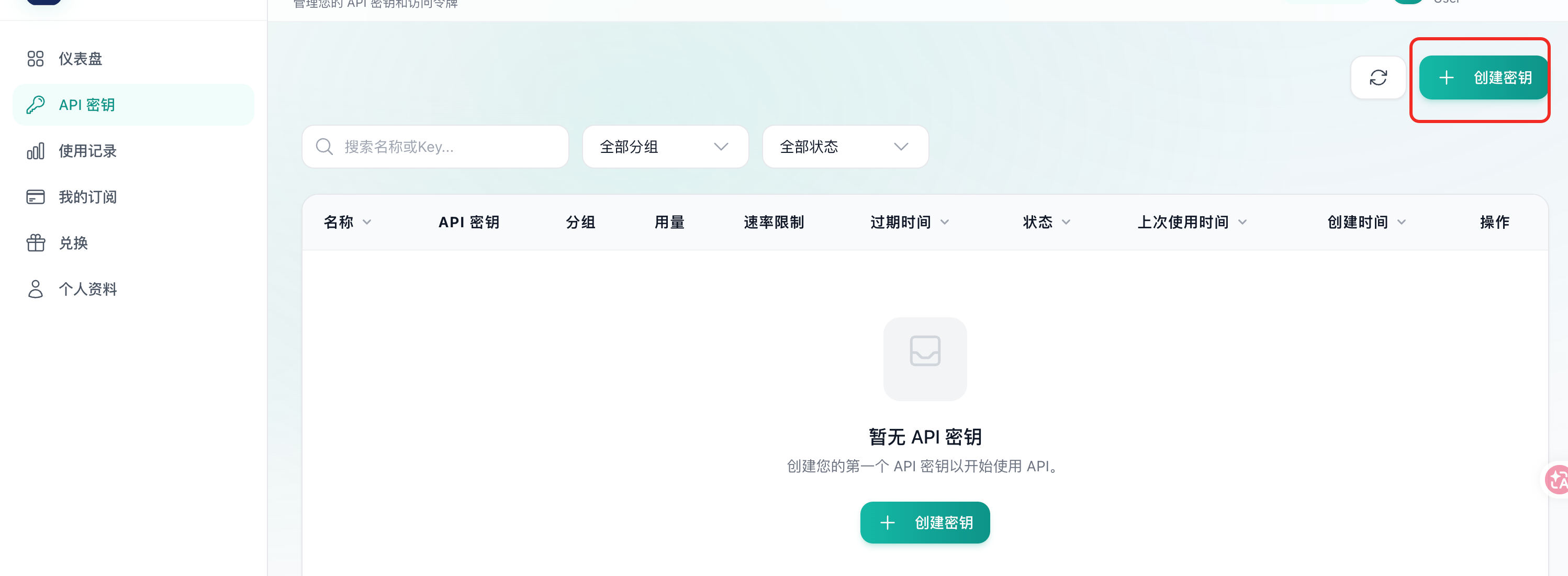
Select Create Key.
3.
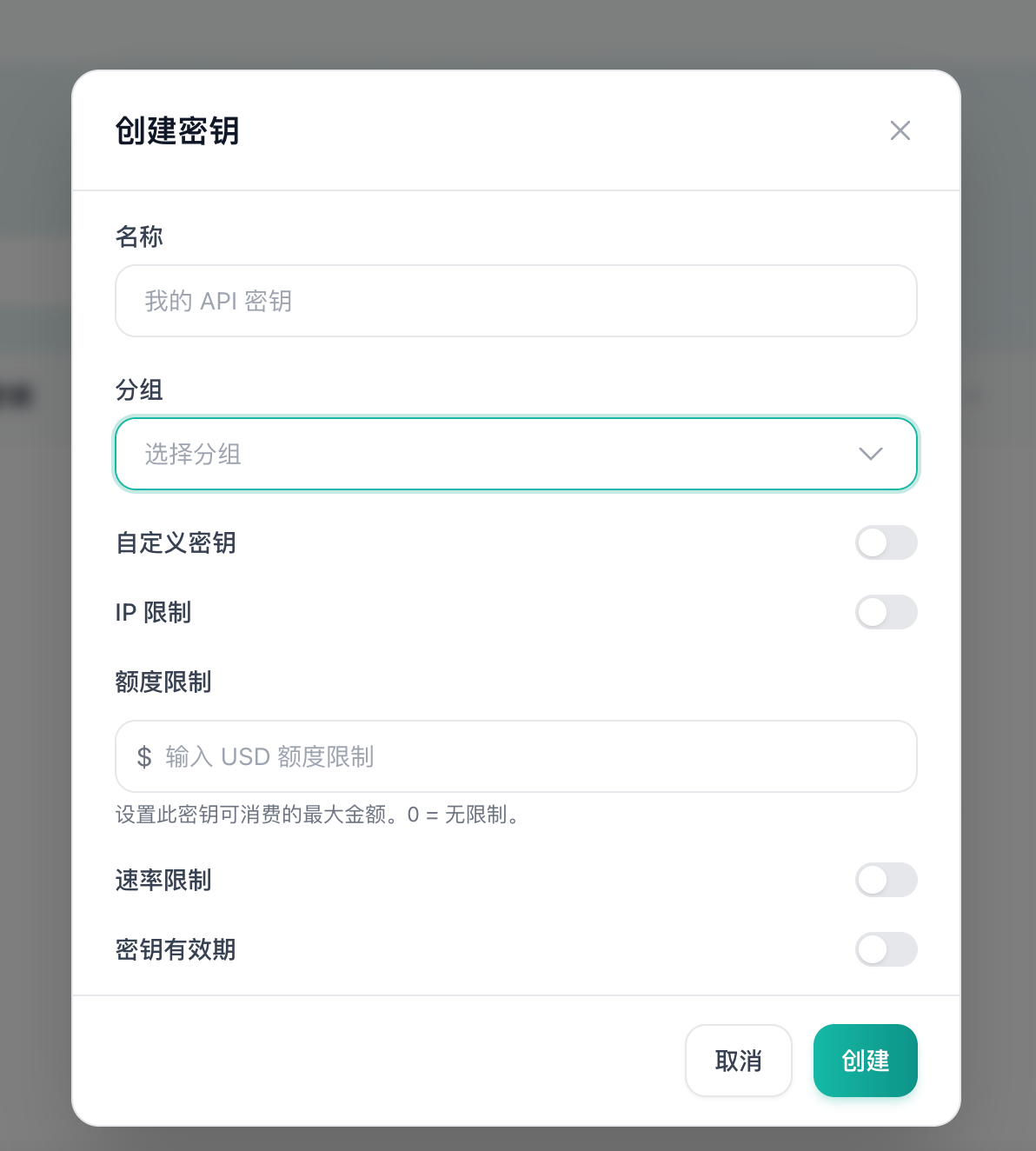
Enter a key name and choose a Codex group with the model and billing multiplier you need.
4.
Optionally configure IP restrictions, a spending limit, a rate limit, and an expiration date. New users can start with the defaults.
Open the API Keys page
Create an API key
Treat an API key like a password. Never commit it to a repository, paste it into public content, or share it with another person.

3. Configure Codex CLI#

CC Switch is the recommended setup method. Manual configuration is also available.

Option A: CC Switch (recommended)#

1.
Download and install CC Switch from its GitHub Releases page.
2.
In AnyRoute, select Import to CCS.
3.
In CC Switch, enable the imported AnyRoute configuration.
Import the configuration into CC Switch
Enable the AnyRoute configuration in CC Switch
The current screenshots may show Chinese labels. “导入到 CCS” means Import to CCS, and “启用” means Enable.

Option B: configure Codex manually#

Create the configuration directory#

This step preserves any existing Codex configuration.
Windows PowerShell:
New-Item -ItemType Directory -Force "$env:USERPROFILE\.codex" | Out-Null
macOS or Linux:
Do not delete the .codex directory. It can contain existing configuration, authentication data, command history, logs, and caches.

Create or update config.toml#

Create config.toml inside ~/.codex/ on macOS or Linux, or %USERPROFILE%\.codex\ on Windows. If the file already exists, merge the following settings with your current configuration instead of overwriting unrelated settings:
model_provider = "anyroute"
model = "gpt-5.6-sol"
model_reasoning_effort = "high"

[model_providers.anyroute]
name = "AnyRoute"
base_url = "https://cc.anyroute.io"
env_key = "OPENAI_API_KEY"
wire_api = "responses"
This configuration tells Codex to read the AnyRoute key from the OPENAI_API_KEY environment variable. It does not place the key in config.toml.

Provide the API key#

Copy the key from the AnyRoute console:
Copy the API key
Set it for the current terminal session. Replace YOUR_API_KEY with your actual key.
Windows PowerShell:
$env:OPENAI_API_KEY = "YOUR_API_KEY"
macOS or Linux:
For regular use, prefer CC Switch or your operating system's secure credential-management method. Do not store API keys in a repository or shared shell script.

4. Start Codex#

Open a terminal in your project directory and run:
Codex starts with the current directory as its workspace. For Codex CLI behavior and configuration options, see the official Codex documentation.

Troubleshooting#

npm reports a permissions error#

Avoid using sudo npm install --global. Configure a user-owned npm global prefix, use a Node.js version manager, or use an official Codex installation method supported by your platform.

codex is not recognized#

Run:
Make sure the corresponding global executable directory is on PATH, then open a new terminal and run codex --version again.

The connection fails or returns HTTP 401#

Check that:
base_url is https://cc.anyroute.io.
OPENAI_API_KEY is set in the same terminal session that starts Codex.
The AnyRoute key is active, unexpired, and assigned to a Codex-compatible group.

How do I switch models or billing groups?#

Create a key for the required group in the AnyRoute console, then switch configurations in CC Switch or update OPENAI_API_KEY in your current terminal session.

Join AnyRoute WeChat Group

To get support for AnyRoute

scan QR code
Modified at 2026-07-24 19:01:47
Previous
CC Switch Introduction
Next
Claude Code Quick Start
Built with