1. Quick Start Guides
AnyRoute English
  • AnyRoute User Guide
  • Frequently Asked Questions
  • AnyRoute Support Group
  • Supported Models
  • Environment Setup
    • Node.js Installation Guide
    • CC Switch Introduction
  • Quick Start Guides
    • Codex CLI Quick Start
    • Claude Code Quick Start
    • OpenClaw Quick Start
    • Hermes Quick Start
    • Cherry Studio Quick Start
    • Claude Desktop Quick Start
    • Codex Desktop Quick Start
    • GPT Image 2 Guide
    • Claude Code in VS Code
  • Advanced Guides
    • Personal AGENTS.md Global Rules
    • Claude Code and Codex Collaboration Guide
  1. Quick Start Guides

Claude Desktop Quick Start

This guide configures Claude Desktop to use AnyRoute as a third-party gateway.

Before you begin#

You need:
1.
Claude Desktop installed on your computer
2.
An active AnyRoute API key
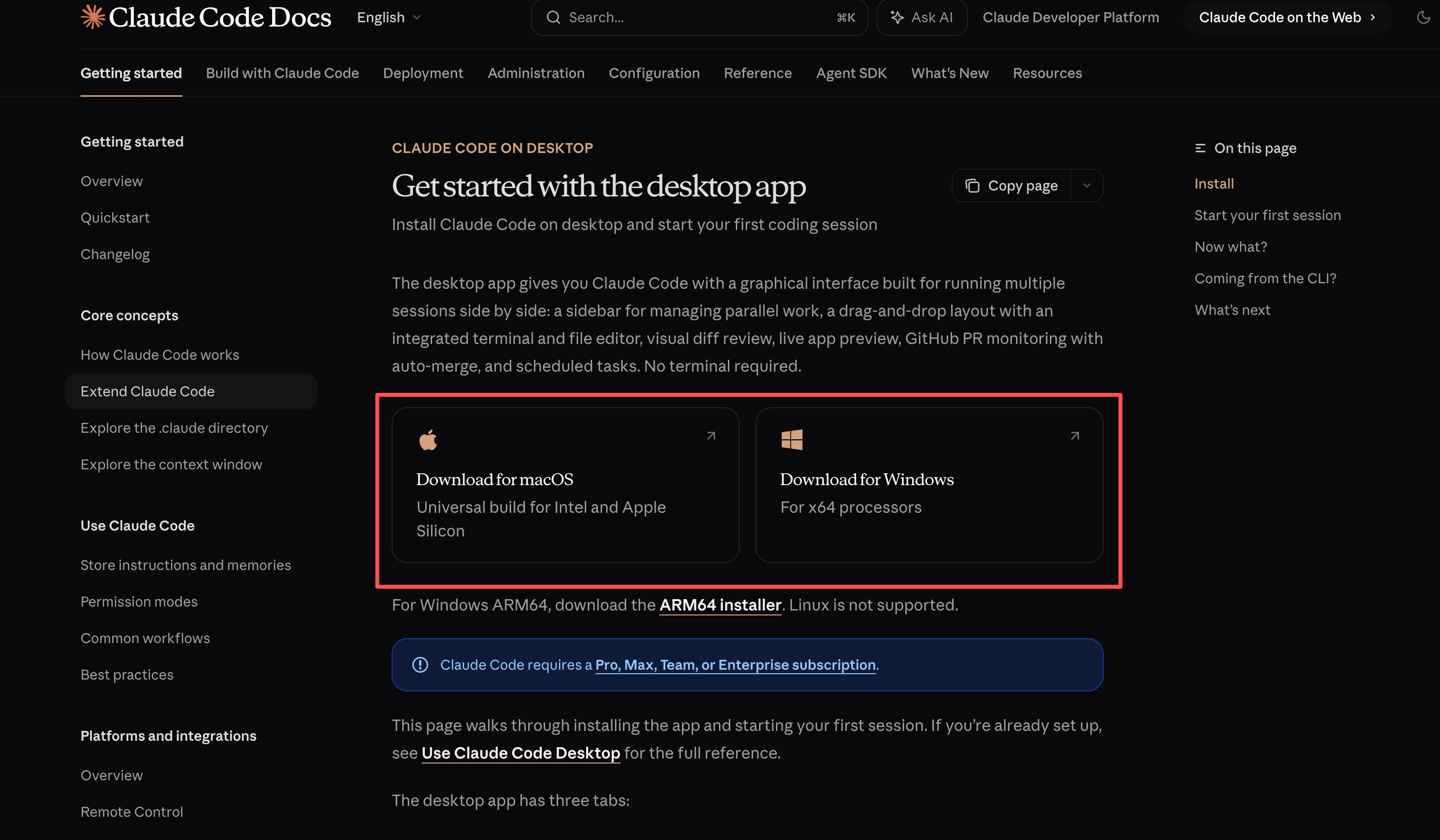
Download the current client from the Claude Desktop quick-start page.
Claude Desktop download page

macOS#

1. Enable Developer Mode#

1.
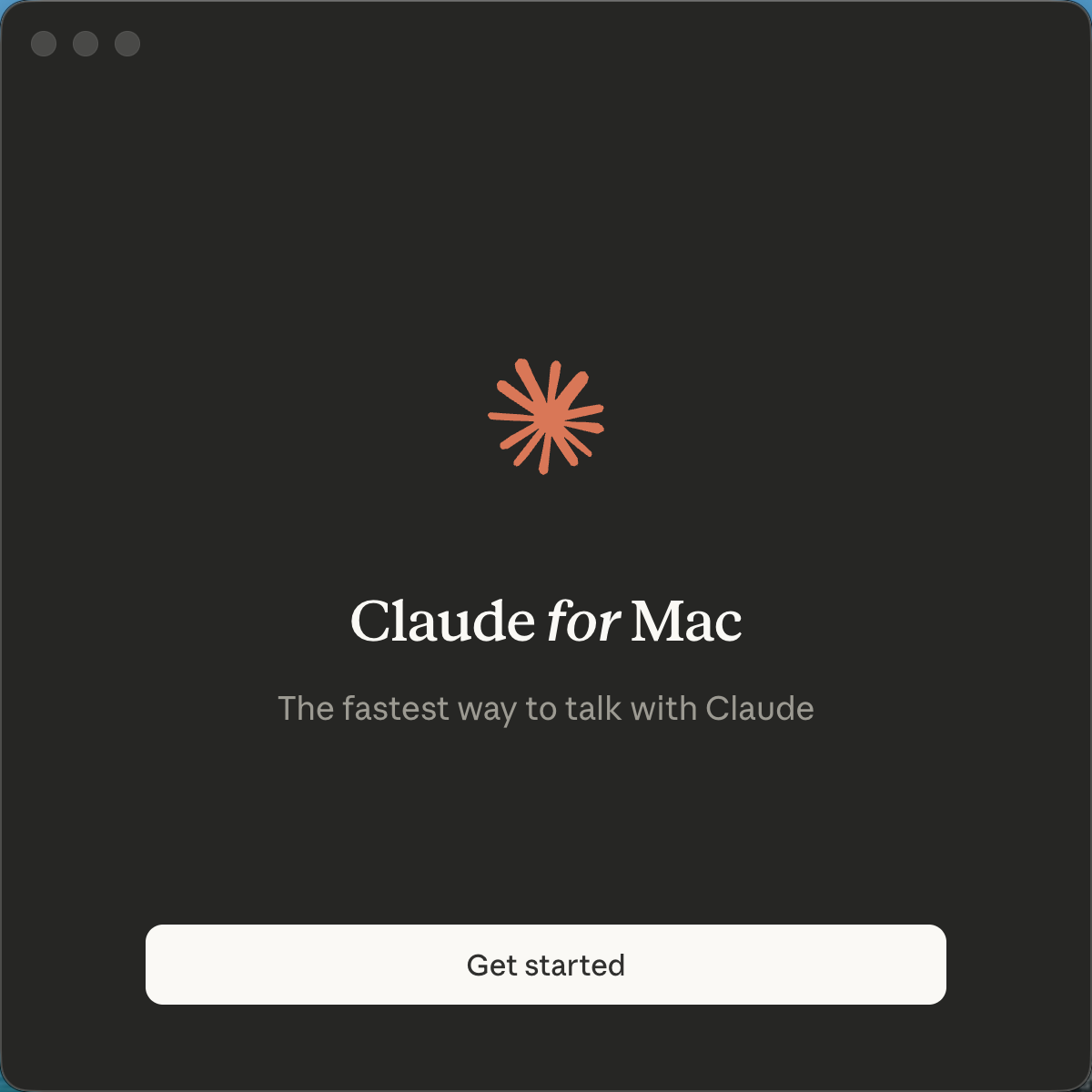
Open Claude Desktop.
Claude Desktop main window
2.
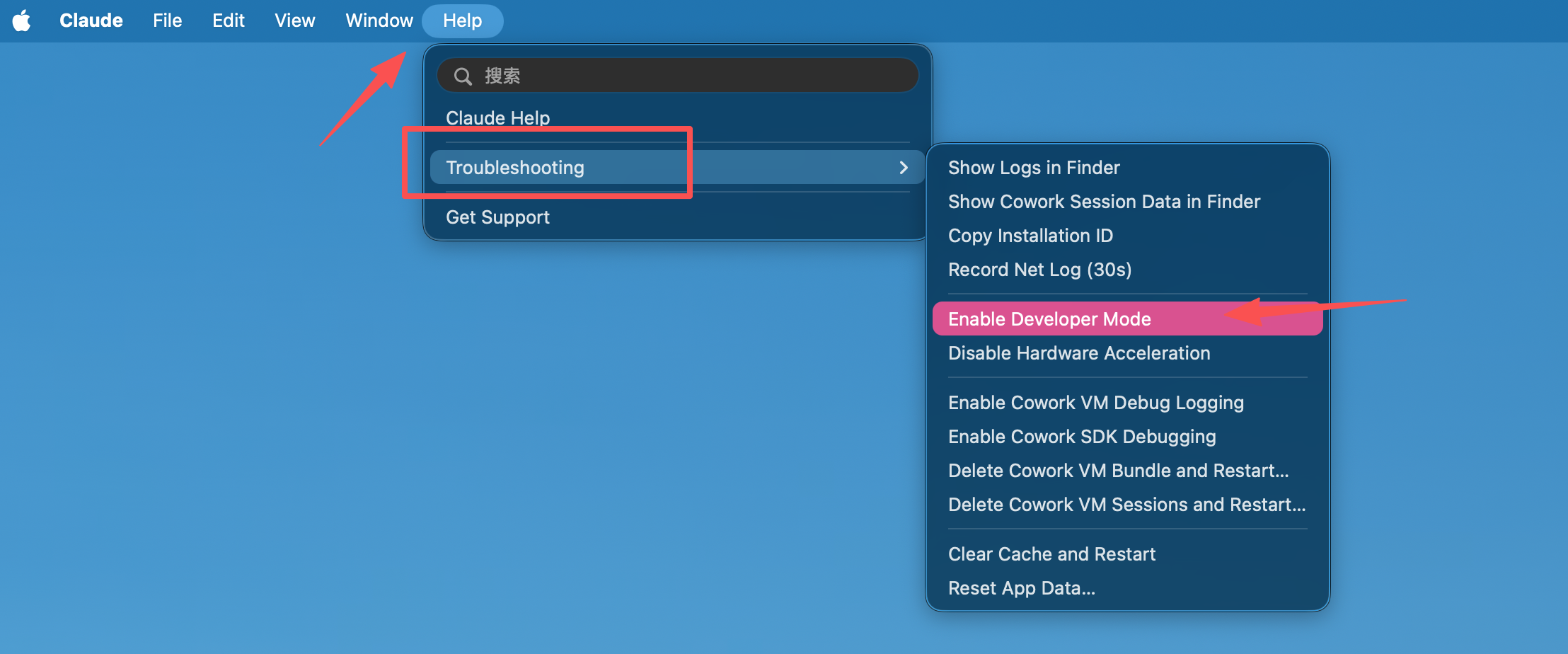
From the macOS menu bar, select Help → Troubleshooting → Enable Developer Mode.
Enable Developer Mode
3.
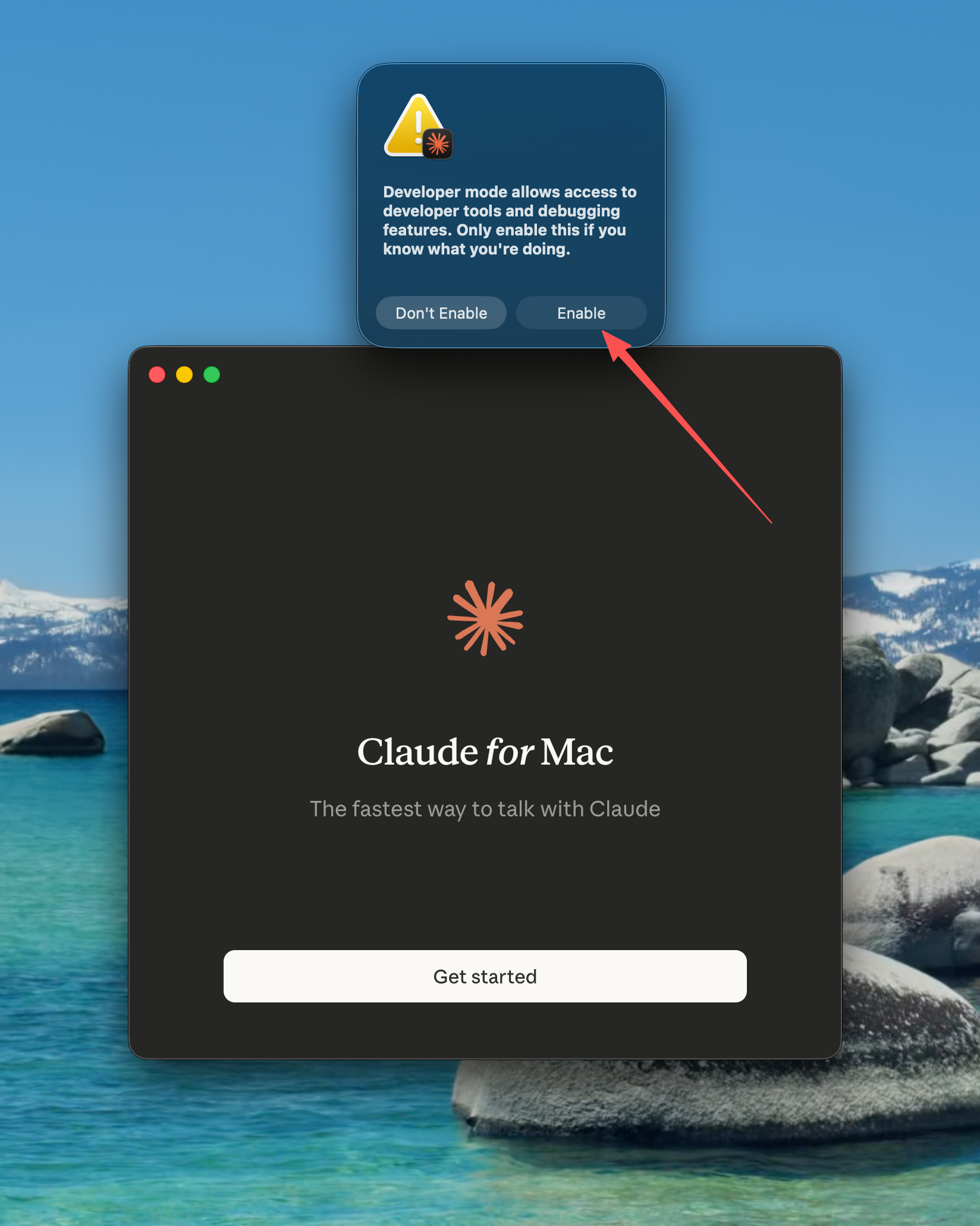
Select Enable. Claude Desktop restarts.
Confirm Developer Mode

2. Configure the gateway#

1.
After restart, remain on the welcome screen and do not sign in yet.
2.
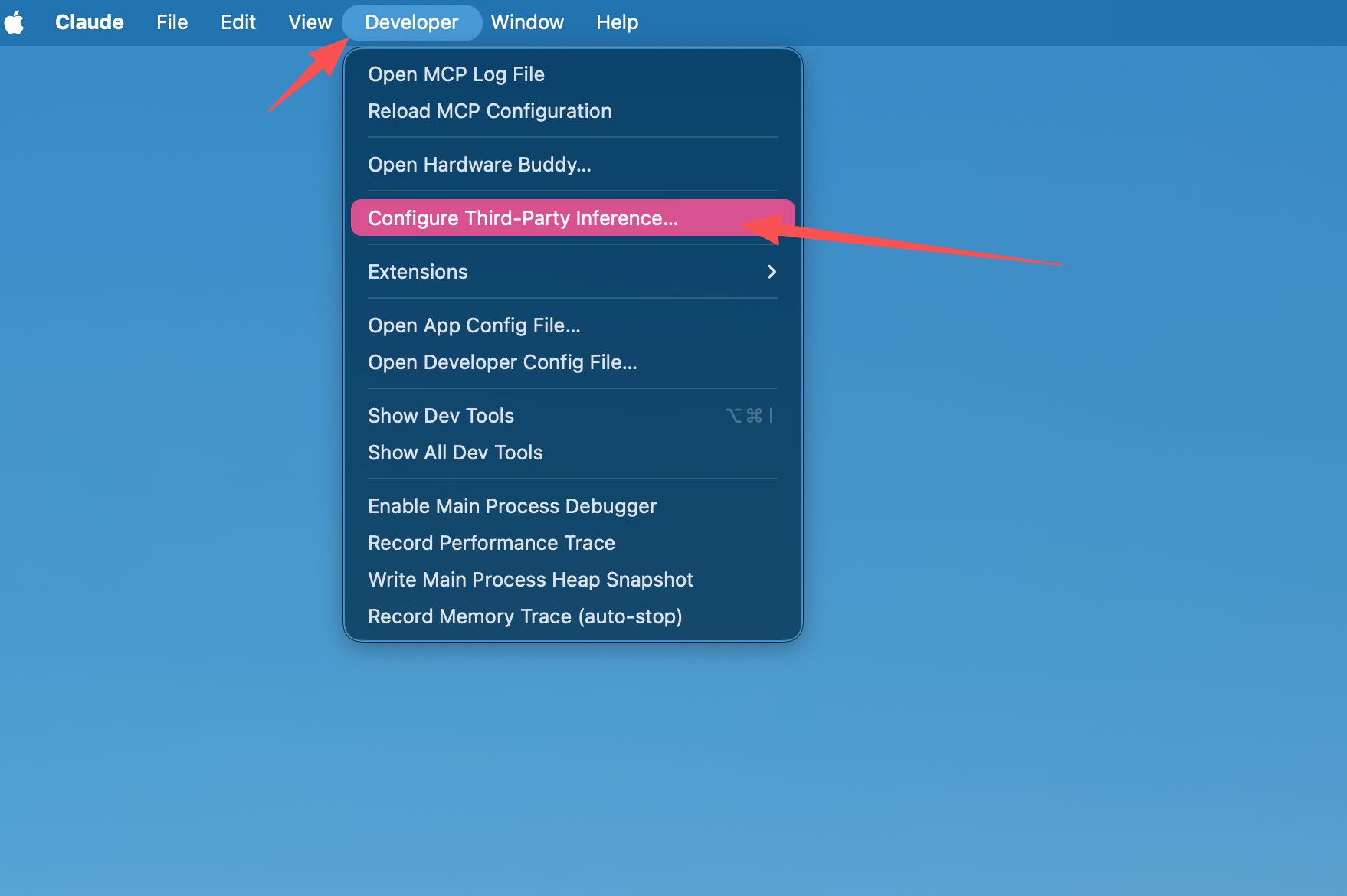
Select Developer → Configure Provider.
Developer menu
3.
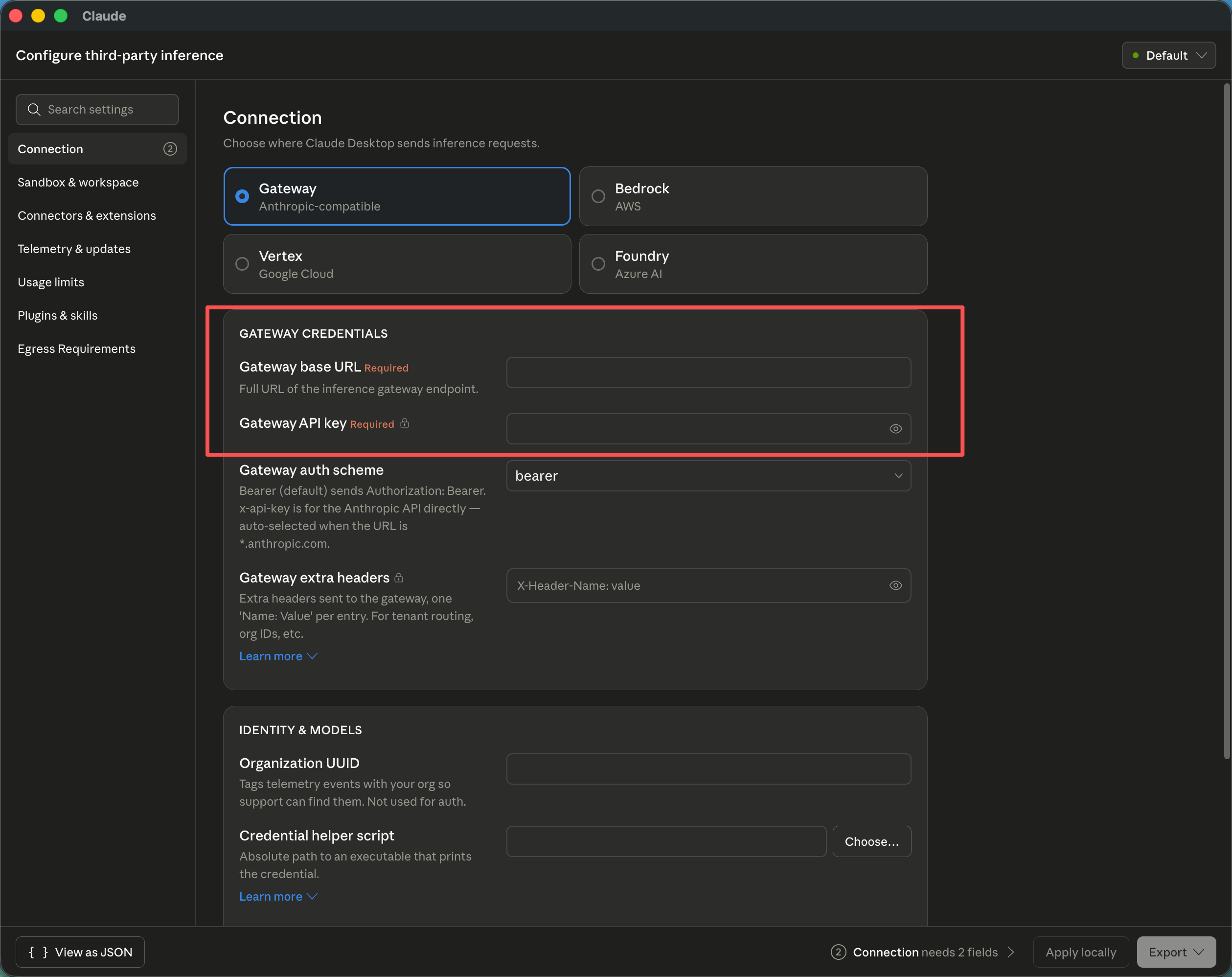
Enter:
SettingValue
Gateway base URLhttps://cc.anyroute.io
Gateway API keyYour AnyRoute API key
Configure the AnyRoute gateway
4.
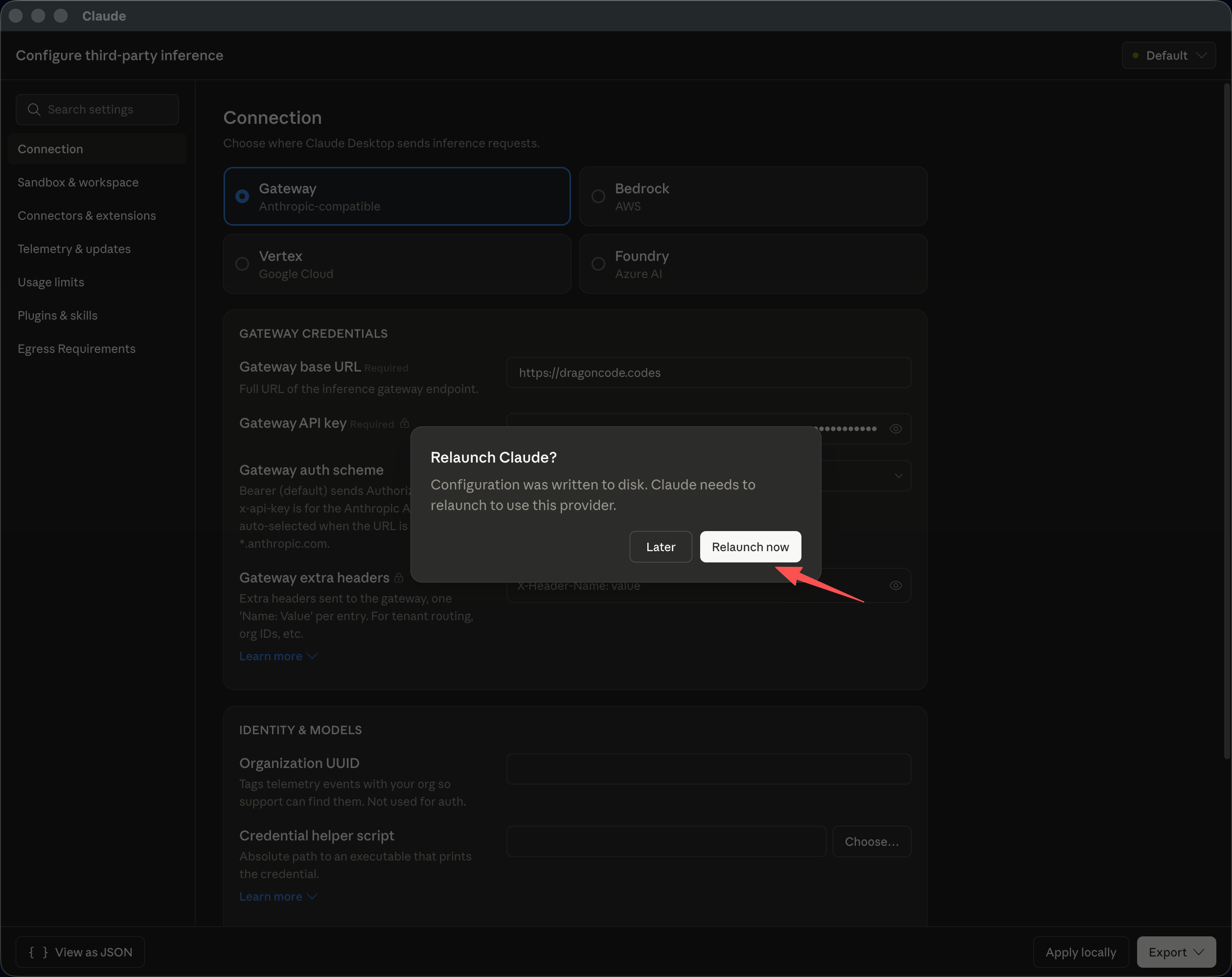
Select Apply locally.
5.
Select Relaunch now.
Restart confirmation
6.
After restart, select Continue with gateway.
Continue with gateway

View shortcuts#

ShortcutView
Command + 1Cowork
Command + 2Code
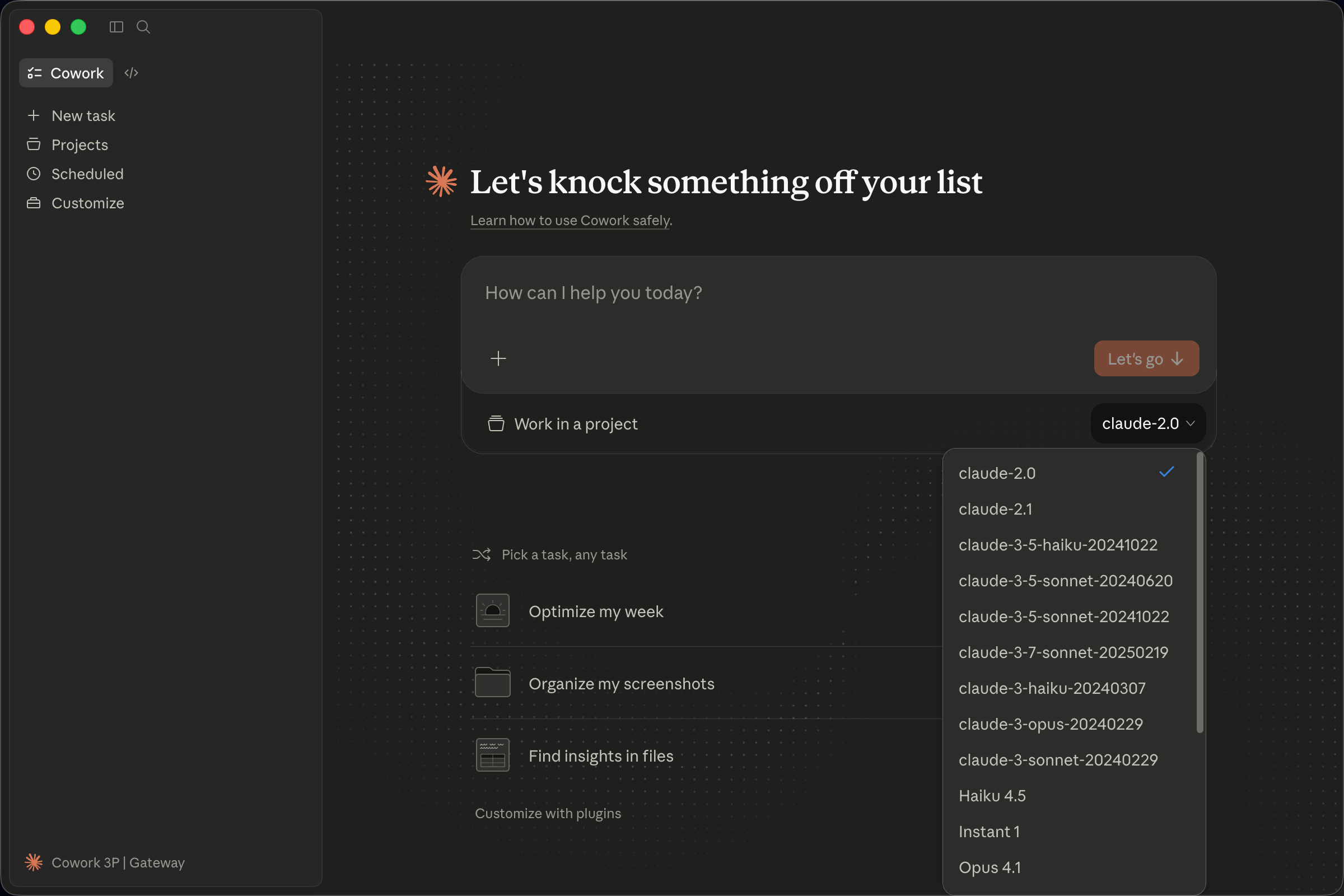
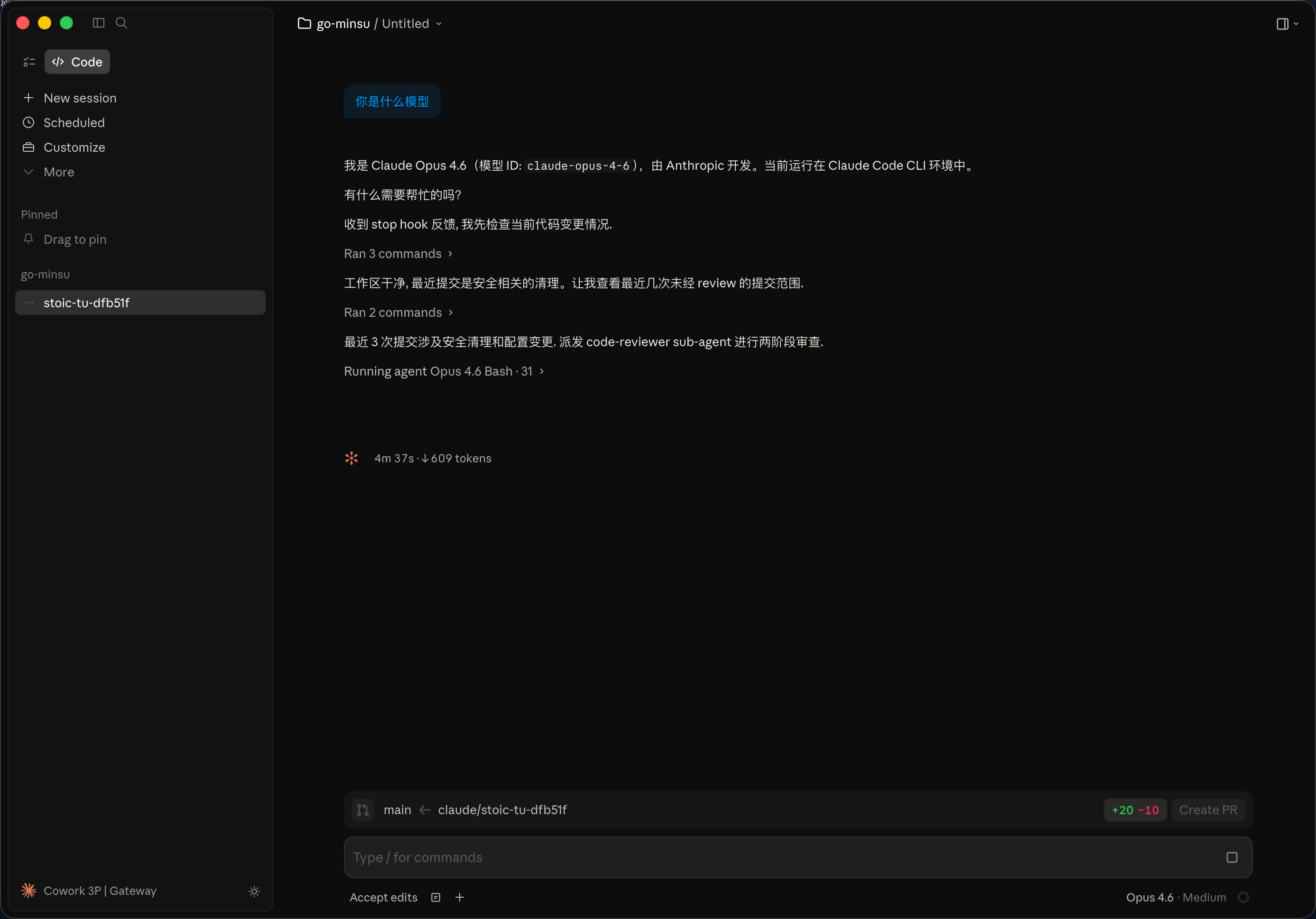
Send a simple prompt to verify that the gateway returns a response.
Verify the model connection

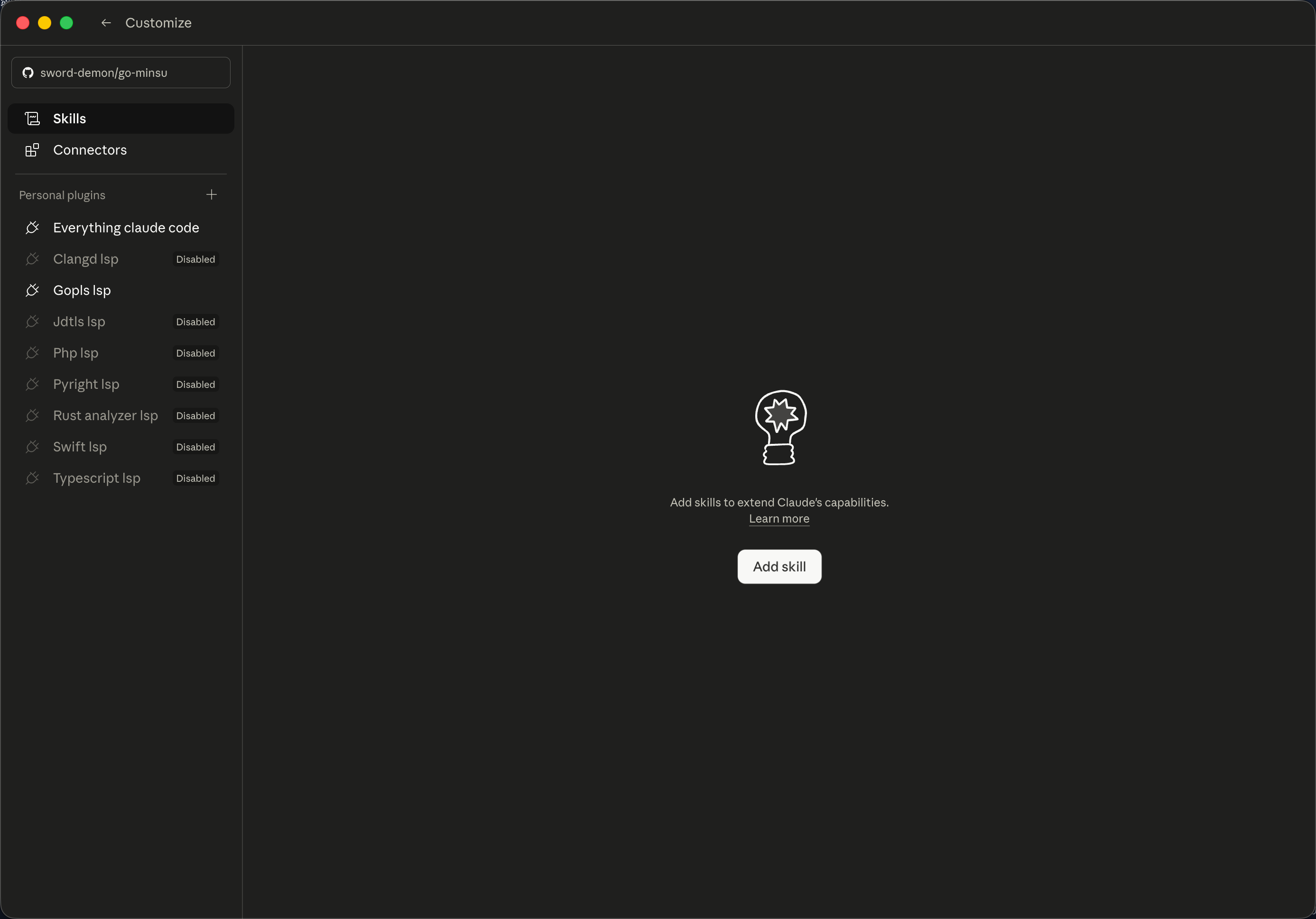
Plugins and skills#

Claude Desktop may synchronize supported plugins and skills from Claude Code. You can also upload a supported skill from the Desktop interface.
Plugin and skill synchronization

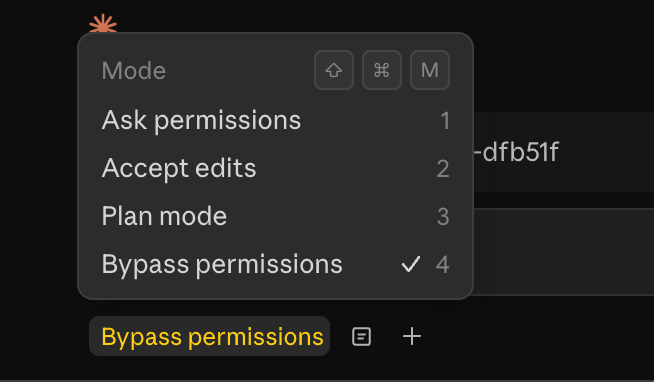
Permissions#

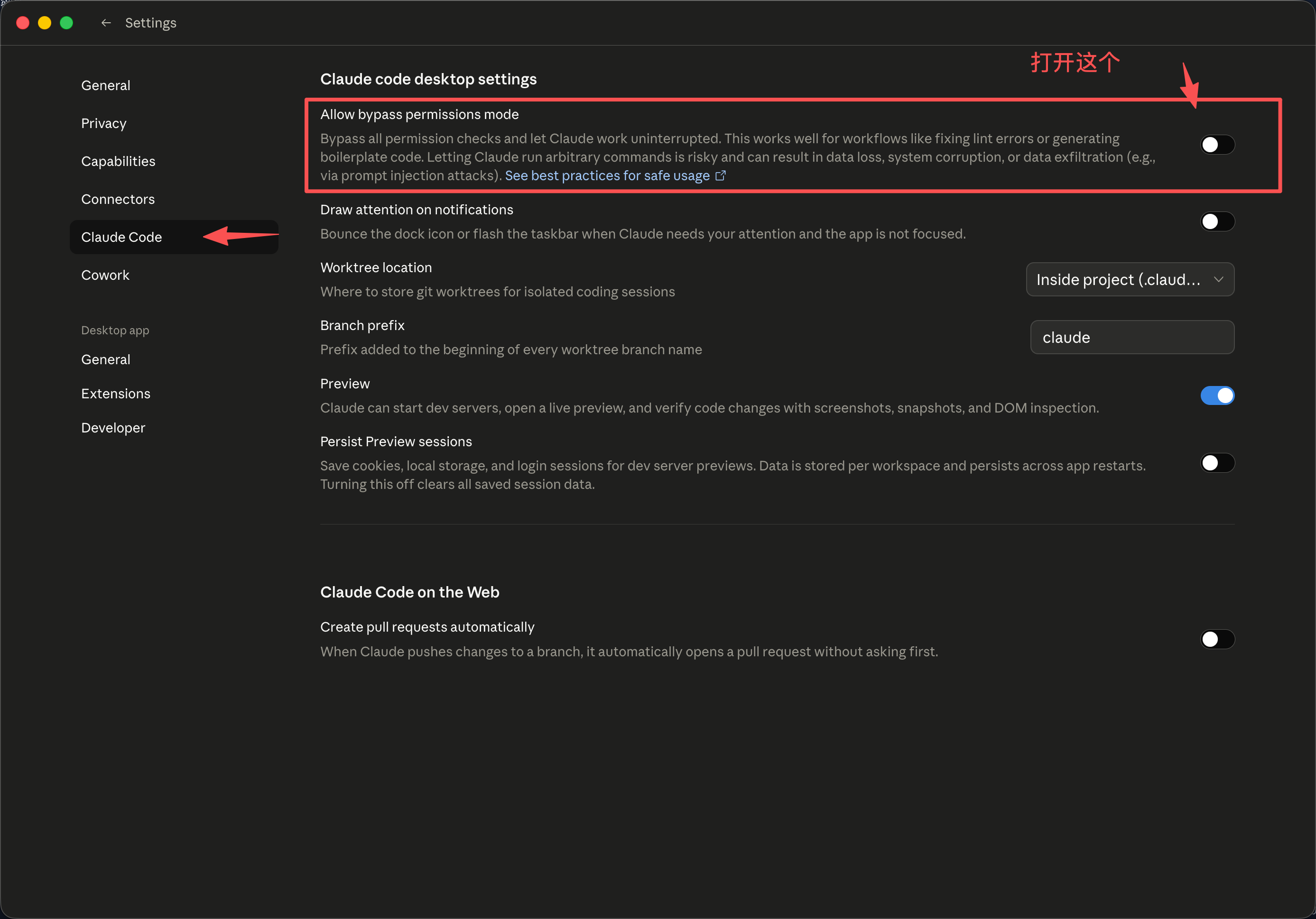
Open settings from the lower-left status area or press Command + ,.
Open settings
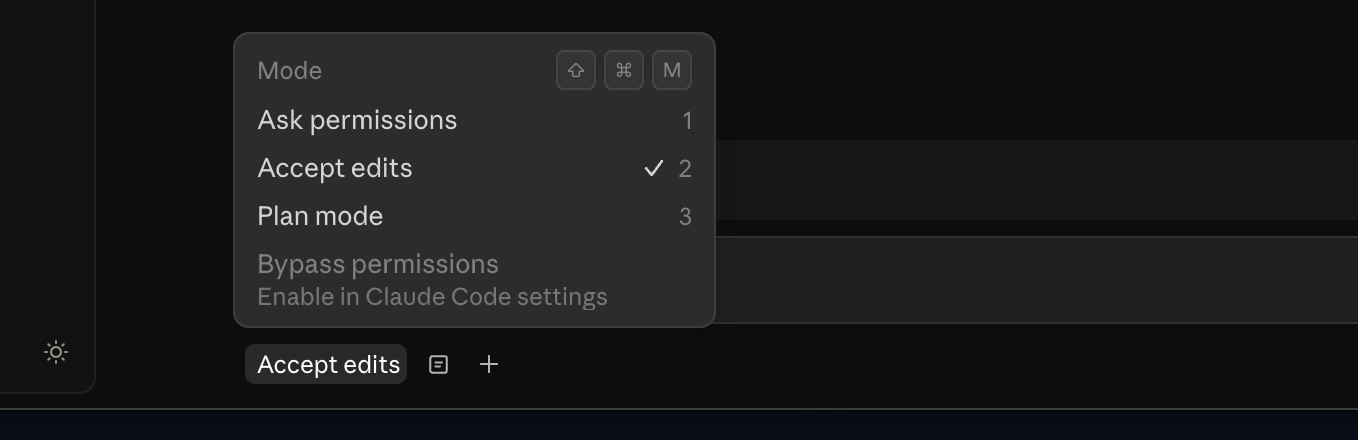
Permission settings
Permission details
Keep confirmation prompts enabled unless you understand and accept the impact of automatic file, command, and system operations. Higher permission levels can allow changes without per-action confirmation.

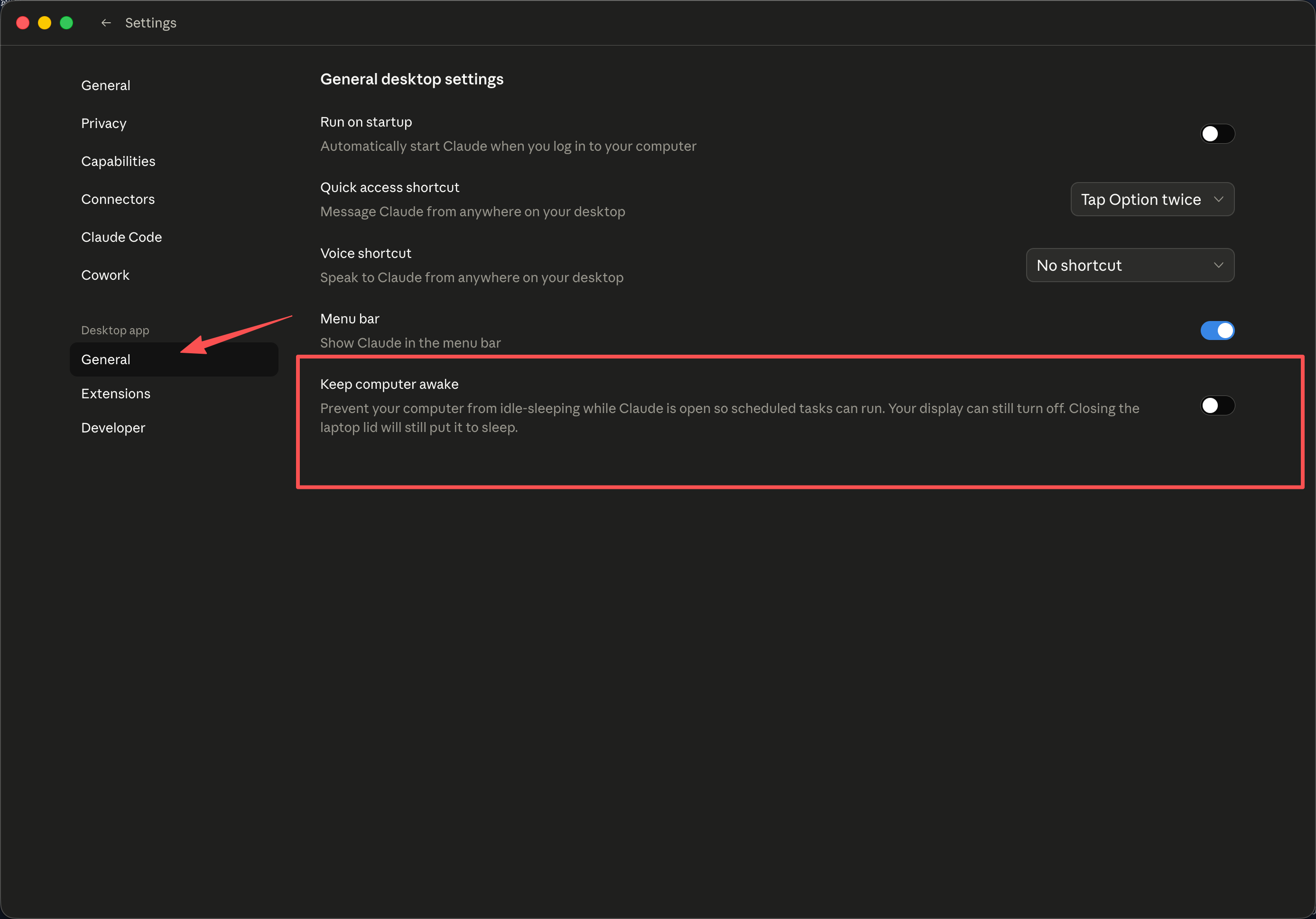
Keep the computer awake#

For long-running tasks, enable Keep computer awake if needed.
Keep computer awake
This can prevent idle sleep, but closing a laptop lid can still suspend the device.

Windows#

The provider values are the same as on macOS; only the Developer menu entry differs.
1.
Open Claude Desktop and stay on the welcome screen.
2.
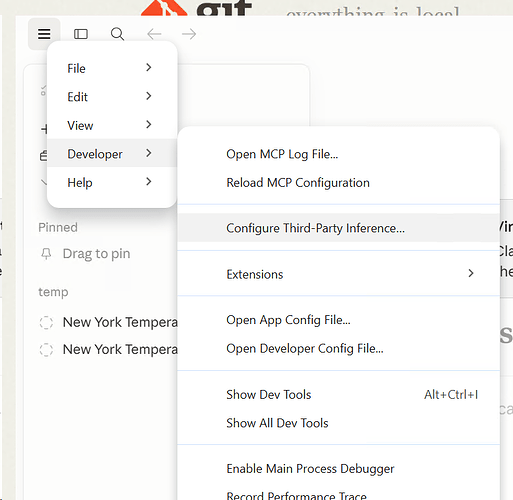
Press Tab until the upper-left menu button is focused, then press Enter.
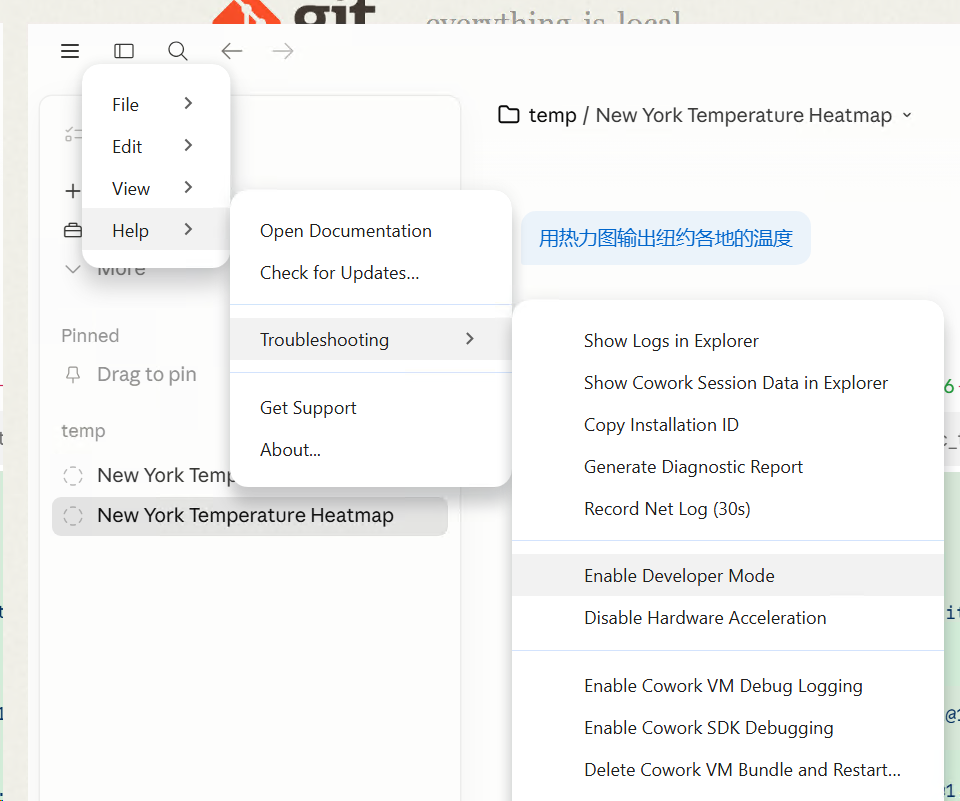
Windows menu entry
3.
Select Developer → Configure third-party interface.
Windows Developer menu
4.
Enter https://cc.anyroute.io and your AnyRoute API key.
5.
Select Apply locally, fully restart Claude Desktop, and continue with the gateway.
Windows provider form

Troubleshooting#

ProblemCheck
Cannot connectConfirm the URL starts with https:// and the key is active
Provider change is not appliedSelect Apply locally and fully restart the app
A command is deniedReview the permission level; increase it only when the requested operation is trusted

Related resources#

Claude Desktop documentation
Claude Code Quick Start

Join AnyRoute WeChat Group

To get support for AnyRoute

scan QR code
Modified at 2026-07-24 19:04:13
Previous
Cherry Studio Quick Start
Next
Codex Desktop Quick Start
Built with